Site Moved

This site has been moved to a new location - Bin-Blog. All new post will appear at the new location.

Bin-Blog

Subscribing a feed in Google Reader using Firefox

The latest version of firefox has a feed preview feature. But subscribing a new feed in Google Reader using this feature leaves a little to be expected. If you use this feature to subscribe to feeds in the Google Reader, you must have come across the "Subscribe to Google Reader/Google Homepage" dilemma. I always want to subscribe to Google Reader - thats one extra click for me. But I found a way to overcome this.

Open a new tab and type in about:config in the address bar.

Type browser.contentHandlers in the Filter text box

Find the key name of the Google Reader property - in my system, it is 'browser.contentHandlers.types.2.title'. See image for clarification

The 'index' of the Google Reader, in my case is 2.

Right click on browser.contentHandlers.types.2.uri(the number must be the index of Google Reader in your system) and click Modify.

Enter the value...

http://www.google.com/reader/view/feed/%s

Now restart Firefox and try to subscribe to a feed - you will be taken to the google reader page directly. Then click on the "Subscribe" button on the top right corner to subscribe.

Read More...

Digg Bookmarklet for Firefox

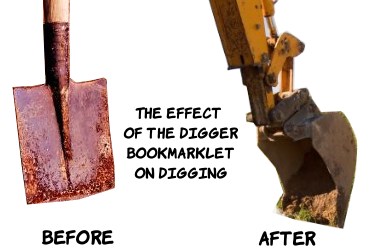
The effect of my bookmarklet on Digging

I have talked in length about how del.icio.us and furl bookmarklets can be improved - now I want to talk about another similar service that don't even provide a bookmarklet. I am talking about Digg. Okay, I know that Digg is not a social bookmarking site - but it is a site to which you can submit URLs with it's title and description. So the same kind of bookmarklets can be used here too. With that in mind, I will try to create the 'perfect' Digg bookmarklet.

The Digger Bookmarklet - for the impatient. To install the bookmarklet, just 'dragg' the link to your bookmarks toolbar. Now visit any page you want to submit to digg and hit this button. The bookmarklet will open a new window with all the information filled in automatically.

Requirements

The Digg bookmarklet should have the following features...

  • URL must be fetched
  • Title must be fetched
  • The description to be used must be selectable by the user.
  • If the user did not select a description, it must be auto generated.
  • All the inputed values must be editable by the user.

The perfect bookmarklet should work in IE as well as the other browsers. However, I am leaving this out as I hate IE and so should you. Anyway, enabling this feature will make many other features impossible - as IE have a very stupid 488 character limit for bookmarks. This will make complex bookmarklets very hard to create - if not impossible.

Fetching Data

URL

Fetching URL of the current page is easy - just use document.location.href. This will be passed in the URL to the Digg site - to the phase 2 page. This means that URL is not editable after the bookmarklet is clicked. I am sorry about that - if it must be editable, I have to use the phase 1. That is more trouble than it is worth.

Title

Another easy one - javascript has the document.title property that can be used to fetch the title of the document. There is a problem with this - in many sites, the site title is given with the page title - like this "xml2array() - XML Parser for PHP < PHP < Bin-Co". Using the first H1 tag may solve this, but again, that could hold the site title too. Anyway this field is editable - so don't worry too much about it.

Description

This is the hard part - I am going to use this method to fetch the description.

  • First, see if any text is selected in the document. If so use that as the description.
  • If nothing is selected, search for the 'description' meta tag. If present use that.
  • If these two methods fails, we use a failsafe - the first paragraph(p tag) is fetched and used.

I call this the SMP approach - I use this in my custom social bookmarking bookmarklets. But that is another post.

Now all we have to do is create a URL with these data in the query. The keys used by Digg are..

title
The title of the page
bodytext
The description.
URL
The URL of the page.

Please note that you will have to URL encode all the data before using it in the URL.

Bookmarklet

The Bookmarklet - Digger

To install the bookmarklet, drag the above link to your bookmarks toolbar. Now visit any page you want to submit to digg and hit this button. The bookmarklet will open a new window with all the information filled in automatically.

The bookmarklet code(readable format).

By the way, this bookmarklet will not work in IE6. You need a good browser if you wish to use the bookmarklet.

If you have any more ideas to improve this bookmarklet, let me know.

Read More...

Firefox 2.0 Release(and IE 7)

The recent release of Firefox 2.0 has created a lot of buzz in the blogsphere. And, as it is my favorite browser, it would be unfair if I did not give it a write up. In short : The update was more of a response to IE 7.

IE vs Firefox

As you may already know, Microsoft have released their latest browser - IE 7. Many have speculated how it will affect the popularity of Firefox. Perhaps this scared the Mozilla foundation to release a new version of Firefox - just to keep up with the buzz.

Take a look at IE 6 and IE 7 - the difference is obvious. You have trouble believing it is the same browser - even the logo is changed(slightly). Now look at Firefox 1.5 and Firefox 2.0 - you have to stare really heard before you can make out a single difference.

That said, let me assure you that I have no plans to move back to IE - I am not suicidal.

New Features in Firefox 2.0

I am not saying that Firefox 2.0 was just a marketing hack - it has some new features. Some of them that caught my attention are...

Search Engine Plug-in Manager

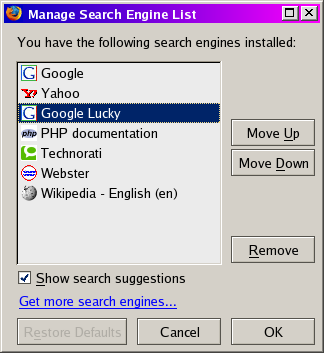
After a long wait, the firefox team have included a feature that must have been in the browser from the first release - a Search Engine Plug-in Manager. Using this you can delete search engines from the browser. I would have liked to see an option to create and edit the plugins too - but something is better than nothing.

Previewing Feeds

This is one of my favorite features in the new version. You can click the 'Subscribe feed' button in the address bar and preview the feed. More importantly, you can copy the feed URL into you favorite RSS reader. That was not possible in the previous versions.

Inline Spell Checking

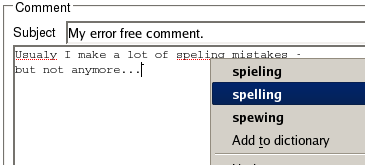
Another must have for all browsers - the spell checker. This will check for spelling mistakes in all the textareas on a page when you are typing.

These are the features that are helpful to me - there are more feature - but they are not for me.

Built-in phishing protection

Must be heaven send for many 'normal' web surfers - but we geeks know how to recognize which site a URL belongs too. It is very hard to fool any geek with a disguised URL - possible - but very hard.

JavaScript 1.7

Don't get me wrong - I love javascript. But despite the upgrades, I will not be able to take advantage of the newer features as it is not supported on other browsers.

Broken Extensions

The thing I hate most about Firefox Upgrades - a lot of extensions stop working. Fortunately, this upgrade did not break too many extensions. The broken extensions(in my system) are...

  • PrefBar
  • Tab Mix Plus - The developers of this extension have promised an update within one week. [Update : Works now]
  • Nuke Anything -
  • This extension was reported as incompatible with Firefox 2.0 - but the authors have upgraded it - so it is working fine now.

Conclusion

So, should you upgrade? There are some new feature - but there are as many reason why you should not upgrade. I have upgraded - and it is my opinion that the upgrade is worth it.

Oh, by the way, if you use IE, please, please upgrade your browser. Upgrade it to Firefox. If you can't do that, at least upgrade it to IE 7. That upgrade is definitely worth it.

Read More...

Bookmark Every Digg

Not long ago, I complained that Digg did not provide a bookmarking option. Now I decided to stop complaing and to do something about it. As a result, I created GreaseMonkey Script that provides an option to bookmark each post in digg in three most popular social bookmarking sites - del.icio.us, Furl and Ma.gnolia. You will see the icons of these three services to the right of all titles in the Digg page.

I created this script to celebrate my first Digg homepage entry. It was an old article on AListApart on how to tame footers using div.

If you are using a social bookmarking system that is not in the given list, edit the script and add it - it is very easy.

Install Bookmark Every Digg

To install, you must have the greasemonkey extension for firefox browser. If you have it, just right click the link and choose "Install This User Script".

More about the script 'Bookmark Every Digg'...

The Script in Action
Read More...

No Sound in Flash running on Firefox in Linux(FC5)

I had a small problem with Flash in Firefox today - flash works - but no sound. I don't know what causes this error - but it seems to be fairly common. This problem only occurs in Linux systems with Firefox.

Fortunately, it was easy to fix. Before letting you know how to fix it, let me say that I use KDE on Fedora Core 5 Distro - I don't know how this solution will help people using other distros. So if you are using FC5, this is the solution...

  • Open the KDE Control Panel.
  • Find the 'Sound & Multimedia' Menu
  • Choose 'Sound System' inside this menu.
  • Click on the 'Hardware' Tab.
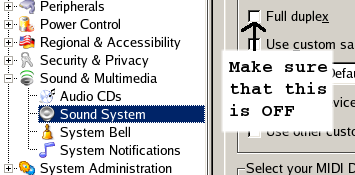
  • Find the checkbox labelled 'Full Duplex' and make sure that it is OFF.
  • Click on Apply - this should restart the sound system.

An image to make this more clear...

If all goes well, your sound should be working now.

If anyone knows the cause of these errors, please leave a comment.

Filed Under...

Read More...

Browsers for Web Development in Linux

A good browser is an essential component for web development. Fortunately, there is no shortage of browsers in Linux. Forbes have a list of Linux browsers in the article titled Browsing The Web On Linux. The article is so old(2002) that it don't mention my favorite browser - Firefox. Firefox is, without doubt, the browser of choice in all platforms that it supports.

But this is not a post to extol the virtues of Firefox. This is a post to explain which browsers to use when developing web sites in Linux. Let us start with Firefox

Firefox

Many people have strongly recommended using Firefox rather than IE for web development. Some of the main reasons for this are...

Standards
Firefox supports Web Standards better than most other browsers. Targeting Firefox will encourage you to use better code.
Build-in Development Tools
Some helpful tools for JavaScript/DOM development is available with Firefox - like JavaScript Console and DOM Inspector. If these are not enough for you, you can use extensions to enhance Firefox.
Extensions
The best selling point of Firefox is perhaps the availability of hundreds of free extensions. Some must-have extensions for web development...
  • Firebug - Extremely useful if you are using JavaScript. This is a more powerful JavaScript console - much better than the default one provided with Firefox. You can filter out unwanted error messages like CSS parsing errors, XML errors, errors for other domains etc. You can also inspect html elements. Also included is a JavaScript shell that executes your commands in the context of the current page.
  • Web Developer Extension - This extensions have too many features to be listed here. Some of the most useful features are...
    • Disable styles, JavaScript, Cache, Images etc.
    • Outline block elements, tables, divs...
    • Edit the CSS of the current page in real time.
    • View/Edit/Delete Cookies.
    • Add external tools - Editor/Validators etc.
    • And more..
  • Venkman JavaScript Debugger - A powerful debugger for JavaScript. Unfortunately, it is not very easy to use and require some getting used to before one can use it to its full power.

Lynx

Lynx is a text browser. Open a terminal and type the command...

lynx http://www.openjs.com/

This is how the lynx browser works - it has no graphics - the interface is completely in text - this is very useful for accessibility testing, SEO, usability testing and more.

Accessibility testing

Looking at your site with lynx browser will show you how people will lesser browsers are using your site. You will see the importance of skip links, shortcut keys etc.

SEO

Lynx shows you how a search engine like google sees your page - without the pretty graphics - without the flash animations - without javascript.

Usability

Is your site useable even without the javascript menus? Without the flash navigation interface? Take lynx for a spin and you will find out.

Read More...

New Greasemonkey User Script - Multiple Engine Searcher

I have created some Greasemonkey User Scripts before, but this is the first one that could be used by others. All other were only fit for personal use. This script will add links to other search engines when searching for something on google. For example, when you search for anything on google, the result page will show the following line...
Try your search on Yahoo, Ask Jeeves, AllTheWeb, Teoma, MSN, Lycos, Technorati, Feedster, Bloglines, Altavista

I got the idea from a Firefox extension which did the same thing. I thought that making a extension for such a simple task is bit of an overkill - a simple user script will suffice for this purpose.

For installing these scripts, you must have Firefox browser and must install Greasemonkey extension for firefox. Then right click the below link and choose 'Install User Script' Option from the context menu.
Install Multiple Engine Searcher.

Filed Under...

Categories :
Technorati Tags:
Read More...

Firefox 1.5 - How to repair broken Extensions

The latest version of Firefox - Firefox 1.5 is released for the public. I have just tried it - but had to revert to the older version(1.0.7) because it broke many of my most necessary extensions. The broken extensions are...

The extensions that stayed intact were...
  • Sage
  • Web Developer

Some of the extensions like TabMix, PrefBar and Greasemonkey were too critical for my browsing that I could not sacrifice them - even for the latest version of Firefox. But I really liked the new version - so I made a last ditch effort to try whether I could repair the extensions - so that it may work with the latest version. As I have recently tried my hand at creating Firefox extensions, I set about the task with great hopes. I am providing a small note of what I have done so that you can try this out - if you too, like me, want to keep the latest version of Firefox - but is unwilling to sacrifice many of you beloved extensions for that.

First I installed Firefox 1.5 and removed all the extensions that did not work. Then I downloaded the latest versions of all the extensions I needed - you can download the extension by going to their websites and choosing 'Save Link As...' option from the right click menu of the Install link for that extension. For example lets say I want to repair the extension PrefBar - I go to their website and download the 'prefbar.xpi' file. Next I renamed the file to 'PrefBar.zip' - I changed the extension to zip. You can do this by running the dos command 'ren "PrefBar.xpi" "prefbar.zip"'. Now extract the contents of this file using any compression programs - like winzip. Now find the file 'install.rdf' and open it in a editor like notepad. Then find the Firefox section for the <em:targetApplication> tag. If only one is given that will be for Firefox. See the below example...

<!-- Firefox -->
 <em:targetApplication>
   <Description>
   <em:id>{ec8030f7-c20a-464f-9b0e-13a3a9e97384}</em:id>
   <em:minVersion>1.0</em:minVersion>
   <em:maxVersion>1.1</em:maxVersion>
   </Description>
 </em:targetApplication>

NOTE: I just created the above example - the code of the extension you are are working on may not be the same as given - except for the contents of the id tag - <em:id>{ec8030f7-c20a-464f-9b0e-13a3a9e97384}</em:id> - that will be the same.

Now you have to change the value of the <em:maxVersion>1.1</em:maxVersion> to <em:maxVersion>1.5+</em:maxVersion>. This will make Firefox think that the extension is compactable with the latest version of Firefox.

Finally, save the file and add this file to the previous ZIP file. Then rename it back to <Extension_name>.xpi from <Extension_name>.zip. There - you are done. You have hacked the extension. Now all you have to do is fire up a Firefox window and drag the xpi files from their location to the Firefox window. This will ask the Firefox to install these extension. Just install them as you install any other extension. With some luck, your hacked extensions will be working in no time.

Before you try this out at home, I have to warn you that my attempts at this hacked have failed. I managed to install the extension - but they did not work properly like they did earlier. Greasemonkey was functional - but some of my most used scripts failed to work with the new version. PrefBar appeared, but it did not prevent Flash files from loading. So I was forced to revert the the earlier version.

Anyway, why don't you try it out - you have nothing to lose. If you do, let me know the results of your experiment - just leave some comments. Hope it works out for you. If it does not, wait for the extension writers to update their extensions.

Filed Under...

Categories : Technorati Tags:
Read More...

XUL-ing Around

I am trying to study XUL. For those who are not familiar with XUL, or (XML User-interface Language is a cross-platform language for describing user interfaces of applications. Currently it is used for creating extensions for Firefox and Mozilla browsers.

The GUI is created in a language similar to HTML and the coding is done in JavaScript. So learning it was very easy for me. The only problem is the file organization and some other complex operations. Nothing to worry about - I will get the hang of it after I code two or three extensions.

I am making a small extension as a training exercise. It is not over yet but will be over any time now - will let you know once a download able version is complete.

For those interested to know more, head over to http://www.xulplanet.com

Read More...

And now in Firefox - XML parsing.

So far I have created two apps that will parse a given XML file in javascript - Binny's Software DataBase and JASFER. Both these programs had the same crippling problem - neither worked in Firefox. The work very well in IE - but in firefox, they have this burning desire to crash and burn.

But not anymore - now both are working in both IE and Firefox. I don't know about the other browsers - but generally, if any page works on the above two browsers it passes my minimum requirements.

Some links that helped me solve the problem...

XML DOM parser Javascript RSS reader

The problem was that I was using absolute item reference - like this...

nodes = data.documentElement.childNodes.item(0).childNodes
alert("Length : " + nodes.length
  + "\nFirst Item : " + nodes.item(0).nodeName
  + "\nFirst Item Value : " + nodes.item(0).childNodes[0].text);
What I should have used is the getElementsByTagName() function - like this...
nodes = xmlDoc.getElementsByTagName("item"); //Get all the 'item's
alert("Length : " + nodes.length
  + "\nFirst Item : " + nodes[0].firstChild.nodeName
  + "\nFirst Item Value : " + nodes[0].firstChild.nodeValue);

I have created a small cross browser framework for loading XML file while creating these softwares. The code is given below. If you have any use for it, feel free to use it - release in GPL licence.

////////////////////////////// XML File Loading ///////////////////////////////
//Firefox only function - happens when a XML file is loaded
function loadHandler () {
  xmlProcessor(this); //Call the Commen function with 'this' data.
}

//Load the xml file - using different method for different browsers
function xmlLoad(xml_file) {
  //Initializations
  feed_id = 0;
  feed_total = 0;

  var xmlDocument = "";
  feed_file = xml_file;
  if(document.implementation.createDocument) {//Firefox
      xmlDocument = document.implementation.createDocument('', '', null);
      xmlDocument.load(xml_file);
 //This function will happen when the file is loaded
 xmlDocument.addEventListener('load', loadHandler, false);
  }
  else { //IE
      var xmlDocument = new ActiveXObject('Microsoft.XMLDOM');
      xmlDocument.async = false;
      var loadResult = xmlDocument.load(xml_file);
      if (loadResult) {
          // process xml document with DOM methods e.g.
          xmlProcessor(xmlDocument)
      } else {
          xmlError();
          return false;
      }
  }
  return true;
}

function xmlError() {
  alert("Some error has occurred!")
}

//Process the xml data
function xmlProcessor(xmlDoc) {
  if(!xmlDoc) {
      feedError();
  }

  //Do whatever you want with the XML data...
  nodes = xmlDoc.getElementsByTagName("item"); //Get all the 'item's
  alert("Length : " + nodes.length
  + "\nFirst Item : " + nodes[0].firstChild.nodeName
  + "\nFirst Item Value : " + nodes[0].firstChild.nodeValue);

}

xmlLoad("file.xml"); // Load the XML file.
Read More...

Subscribe to : Posts